The Editor's Spending Guide: Fix These Bottlenecks Before You Buy Anything Shiny
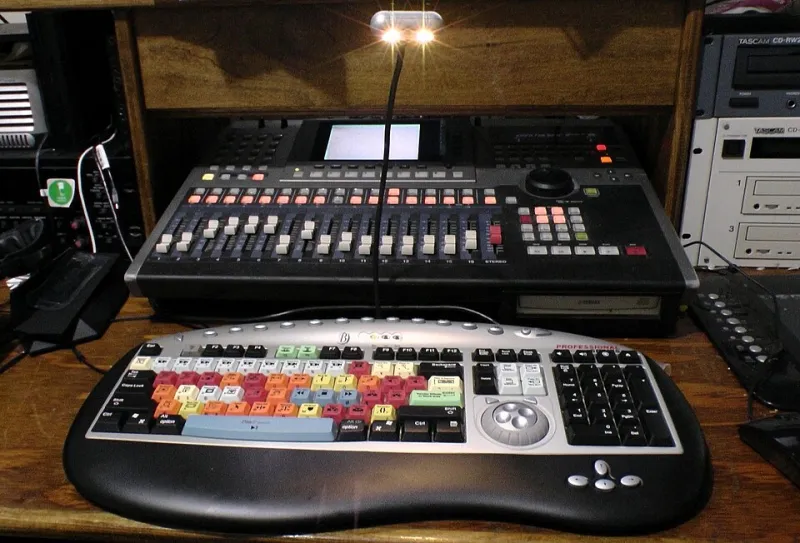
Photo: Ben2742, CC0, via Wikimedia Commons
Every working editor hits the wall eventually. Exports that take longer than the client's lunch break. Preview windows that stutter the moment you add a second layer of grade. The creeping dread of a hard drive that's 97% full with no idea which project is hogging it.
The instinct is to buy a new computer. Resist that instinct — at least until you've audited where the bottleneck actually is. Here's the ranked list, from cheapest fix to full rebuild, based on what actually moves the needle for working editors in the US market.
1. Storage First, Always (Starting Around $120)
If there's one upgrade that pays for itself in a month, it's a fast NVMe SSD for your cache and project files. A 2TB NVMe drive from Samsung or WD runs $120–$180 and will transform scrubbing performance more than almost any other single purchase. If you're still editing off a spinning hard drive or, heaven forbid, an external USB drive, stop reading and fix that.
Then add a backup system — a second drive or a cloud service like Backblaze at about $9/month. Storage isn't glamorous, but losing a client's footage is a career event, not an inconvenience.
2. RAM: The Cheap Multiplier ($200–$400)
If your machine has less than 32GB of RAM, that's your next stop. 64GB is the sweet spot for 4K work with color grading and After Effects in the mix. RAM is one of the few upgrades that's genuinely plug-and-play, and it directly reduces those soul-crushing preview renders.
3. Your Monitor: Where Color Work Lives or Dies ($300–$1,500)
Here's the uncomfortable one. If you're doing color grading on a generic office monitor, you're grading blind — and your clients are seeing a completely different video than you are. A color-accurate display doesn't have to break the bank: something like a calibrated BenQ or ASUS ProArt in the $500–$800 range covers most freelance work. Add a $100 calibration tool (the Calibrite Display Pro line) and suddenly your grades survive the trip to someone else's screen.
This is the upgrade clients can't see you making but absolutely see in the deliverable. Skin tones stop drifting. Grades stop falling apart on iPhones. That consistency is what justifies premium rates.
4. GPU: Only After Everything Else ($600–$1,600)
GPUs get all the hype, but for most editing work they're the third or fourth bottleneck. Once your storage, RAM, and monitor are solid, a mid-range card — an RTX 4070-class card around $550–$600 — handles 4K timelines and GPU-accelerated effects without drama. Only heavy After Effects compositing or 3D work genuinely demands the $1,600+ tier.
5. The Full Rebuild: Last Resort ($2,000+)
If you've done all of the above and you're still bottlenecked, then yes — build or buy a proper workstation. A sensible US-market build at around $2,500 (Ryzen 9 or Intel i7/i9, 64GB RAM, 2TB NVMe, RTX 4070-class GPU, accurate monitor) will outlast a laptop twice its price and hold its value as a work tool for years.
The Real Point
Notice the pattern: the highest-impact upgrades are the least exciting ones. Storage, RAM, and monitor accuracy beat RGB lighting and flagship GPUs every time. Spend like your deadlines depend on it — because they do. A faster machine doesn't make you a better editor, but a reliable, color-accurate, non-crashing setup means the work you deliver actually matches the work you imagined. And in this business, that gap is where reputations are made.